How Do You Manage Car Reservations in Ostool?
September 20, 2025

As the number of customers grows, so do reservations, making their management more complex. Do you know how many active reservations you have right now? How many are confirmed, and how many are still pending? Are there any VIP customers, and have their requests been verified? All these questions are answered by the Reservation Management system in Ostool, which helps you manage car rentals professionally.
What Is Car Reservation Management?
Car reservation management is the process of overseeing bookings for the vehicles you own. When you have a large fleet, the number of reservations increases, making it essential to monitor and analyze each booking in detail. This includes checking if the reservation is confirmed or pending, identifying VIP customers, knowing how much time remains until the car is handed over, and tracking which vehicles are most requested. Proper reservation management ensures high efficiency and reduces errors.
Sections of Reservation Management in Ostool
The reservation management module in Ostool is divided into four sections:
- Reservation Records
This section contains a complete log of all past and current reservations, including details such as reservation number, vehicle number, reservation status, customer name, booking reference, pickup and planned return dates, total amount, insurance, pickup branch, and more. - Reservation Summary
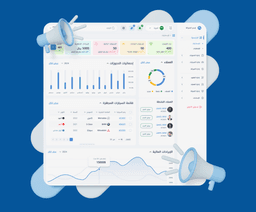
A mini-dashboard that provides an analysis of reservation status, showing the number of confirmed reservations, canceled reservations, and those still pending. - Reservation Statistics
A dashboard displaying the total number of reservations on a monthly and yearly basis. - Add New Reservation
A form that allows you to create a new reservation easily, including all essential details such as vehicle information, customer details, reservation specifics, and a summary of the booking.
How to Manage Car Reservations in Ostool
Managing reservations manually can be complicated, but in Ostool, the process becomes easy and organized. Here’s how:
- Access the Reservation Management Section:
From the main dashboard, select Reservation Management, where you will find the reservation summary, statistics, and the option to add a new reservation. - Add a New Reservation:
Go to Add New Reservation and fill in details such as customer name, vehicle number, pickup date, planned return date, total amount, reservation status, insurance, branch, reservation number, and more. - Track Reservation Status:
Monitor daily reservation status and updates, and add any new reservations to the list. Ostool clearly displays the status of each booking and allows filtering by date or status, so you can quickly see daily reservations, pending bookings, the most requested vehicles, and associated customer information. - Edit Reservations:
For any changes or updates, go to the Reservation Records section to view all reservations in detail, then select the reservation you want to edit. - Generate Reports:
Access the Reservation Statistics section to analyze data monthly or yearly. You can generate detailed reports or export data to share with management or other departments.
Eliminate the chaos and start managing your reservations professionally. Sign up for Ostool today in just a few simple steps.
Related Articles

Ostool System | Unified Gateway for Tajeer and TAM Compliance
March 2, 2026
Ostool – Car Rental Management System
January 10, 2026

The Future of the Car Rental Market in Saudi Arabia
December 10, 2025

How Do Car Rental Management Systems Reveal Market Trends?
November 20, 2025

5 Risks Threatening the Car Rental Sector in Saudi Arabia
November 14, 2025